Your graphics add a nice touch to my presentations and I recently used them for one of my all-hands meetings. Your toolbox adds professionalism to my slides. Instead of using standard clipart.
Claude Jones, Director of Engineer, @Walmartlabs, USA
Your graphics add a nice touch to my presentations and I recently used them for one of my all-hands meetings. Your toolbox adds professionalism to my slides. Instead of using standard clipart.
Claude Jones, Director of Engineer, @Walmartlabs, USA
I needed a fresh look at some of my slides. I've tried to find a way to create a paintbrush effect, to underline, accentuate, add some color and the handwritten markers were just the things. Very easy to use, easy to size, change the color. It was an affordable, perfect solution and I'm happy to recommend it.
Anonymous, US
The crisp, clean look of the graphics, and the fact that it allowed me to easily edit and change the colors to match the template was my main reason for purchasing them.
Brandie Jenkins, E-learning Developer, USA
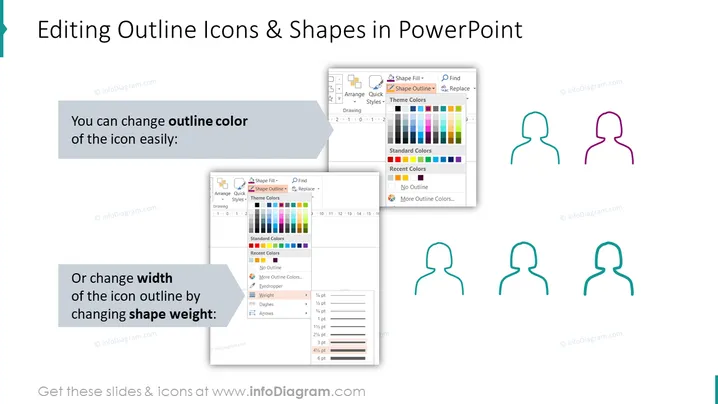
The slide introduces the editing capabilities of outline icons and shapes within PowerPoint. It highlights two main features: changing the outline color and changing the width of the icon outline by adjusting the shape weight. "Changing the outline color" means that users can select a new color for the borders of shapes and icons. "Changing width of the icon outline by changing shape weight" refers to the ability to alter the thickness of the outlines, providing flexibility in how the icons and shapes are presented visually.
The slide is designed with a clean and informative layout, using screenshots and icon examples to visually represent the editing instructions. The combination of text, visual aids, and a simple color scheme maintains focus on the instructional content.