
Your graphics add a nice touch to my presentations and I recently used them for one of my all-hands meetings. Your toolbox adds professionalism to my slides. Instead of using standard clipart.
Claude Jones, Director of Engineer, @Walmartlabs, USA

Your graphics add a nice touch to my presentations and I recently used them for one of my all-hands meetings. Your toolbox adds professionalism to my slides. Instead of using standard clipart.
Claude Jones, Director of Engineer, @Walmartlabs, USA
I needed a fresh look at some of my slides. I've tried to find a way to create a paintbrush effect, to underline, accentuate, add some color and the handwritten markers were just the things. Very easy to use, easy to size, change the color. It was an affordable, perfect solution and I'm happy to recommend it.
Anonymous, US
The crisp, clean look of the graphics, and the fact that it allowed me to easily edit and change the colors to match the template was my main reason for purchasing them.
Brandie Jenkins, E-learning Developer, USA
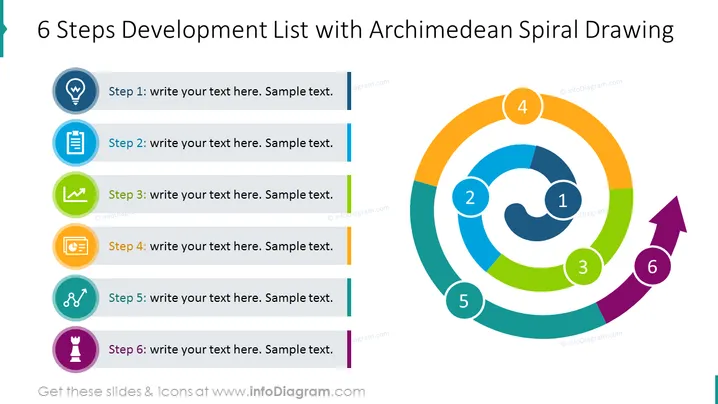
The PowerPoint slide presents a structured process consisting of six steps. Each step is paired with a unique icon and a color, suggesting a sequential flow or development strategy. Step 1 starts with an idea symbol, indicating the inception of a concept. Step 2 follows with a clipboard icon, likely representing planning or documentation. Step 3 features a check mark, which may suggest evaluation or completion of a task. Step 4 has a speech bubble, perhaps denoting discussion or feedback. Step 5 shows a link chain, symbolizing integration or connection between elements. Step 6 concludes with a chess piece icon, possibly standing for strategy or final decision-making.
The slide has a balanced design with a clear division between text content on the left and a vibrant, color-coded spiral on the right. The use of icons and colors is visually appealing and enhances the understanding of the process flow.