Your graphics add a nice touch to my presentations and I recently used them for one of my all-hands meetings. Your toolbox adds professionalism to my slides. Instead of using standard clipart.
Claude Jones, Director of Engineer, @Walmartlabs, USA
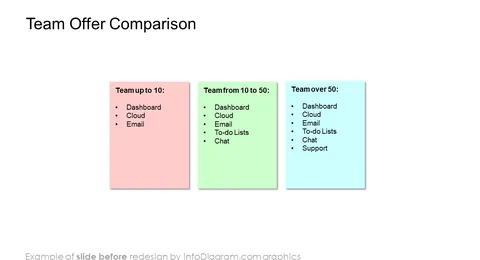
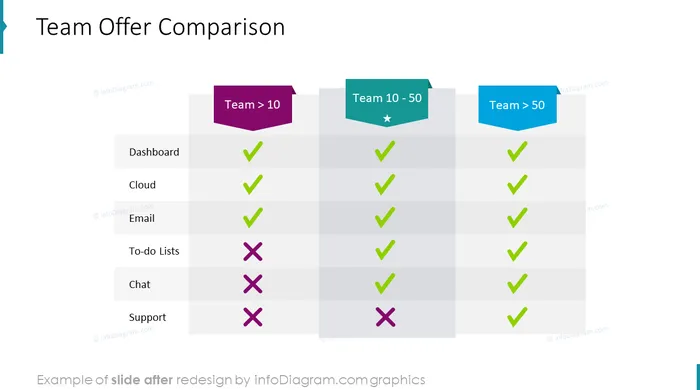
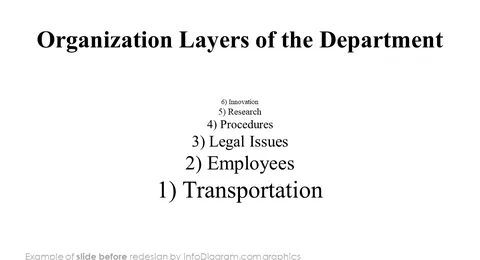
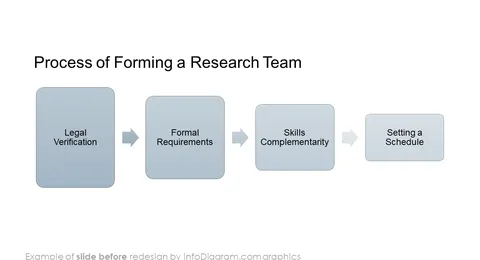
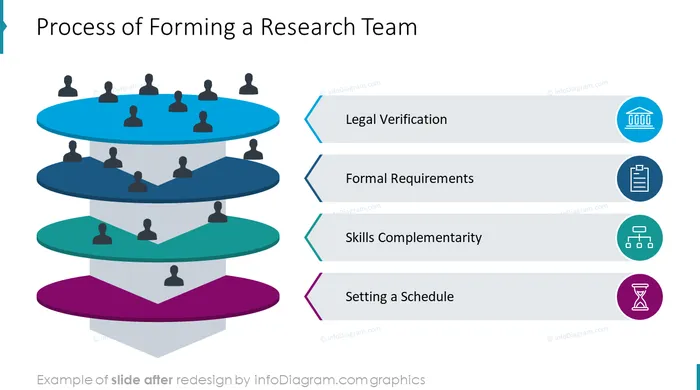
Before and after
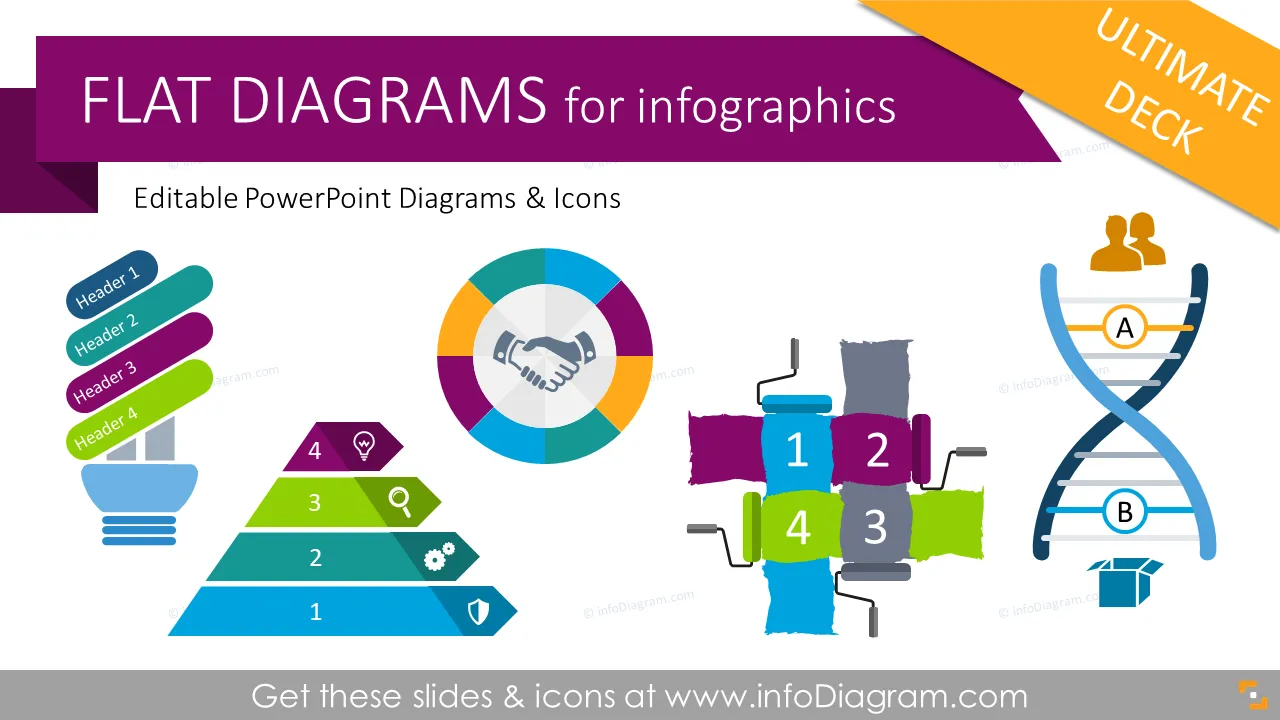
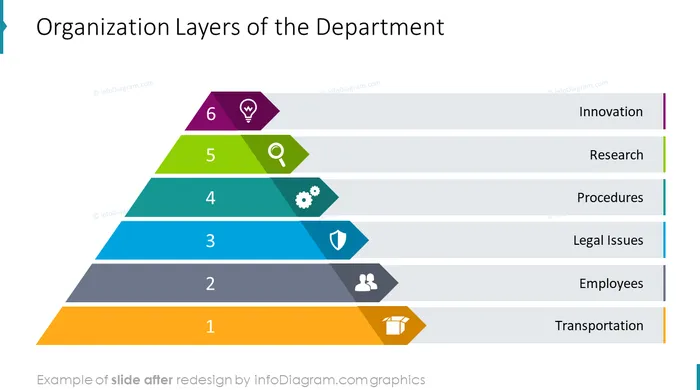
Do you want to make your slides readable and distinguishable? Use simple yet modern graphics to replace text bullet points. Apply diagrams to show structures and dependencies visually. Add flow charts to illustrate timelines and procedures. We have designed this comprehensive premium graphics collection of presentation visuals that you can quickly modify in PowerPoint. Diagrams cover various types of information - be it a list, procedure, map, KPI data, or hierarchy.
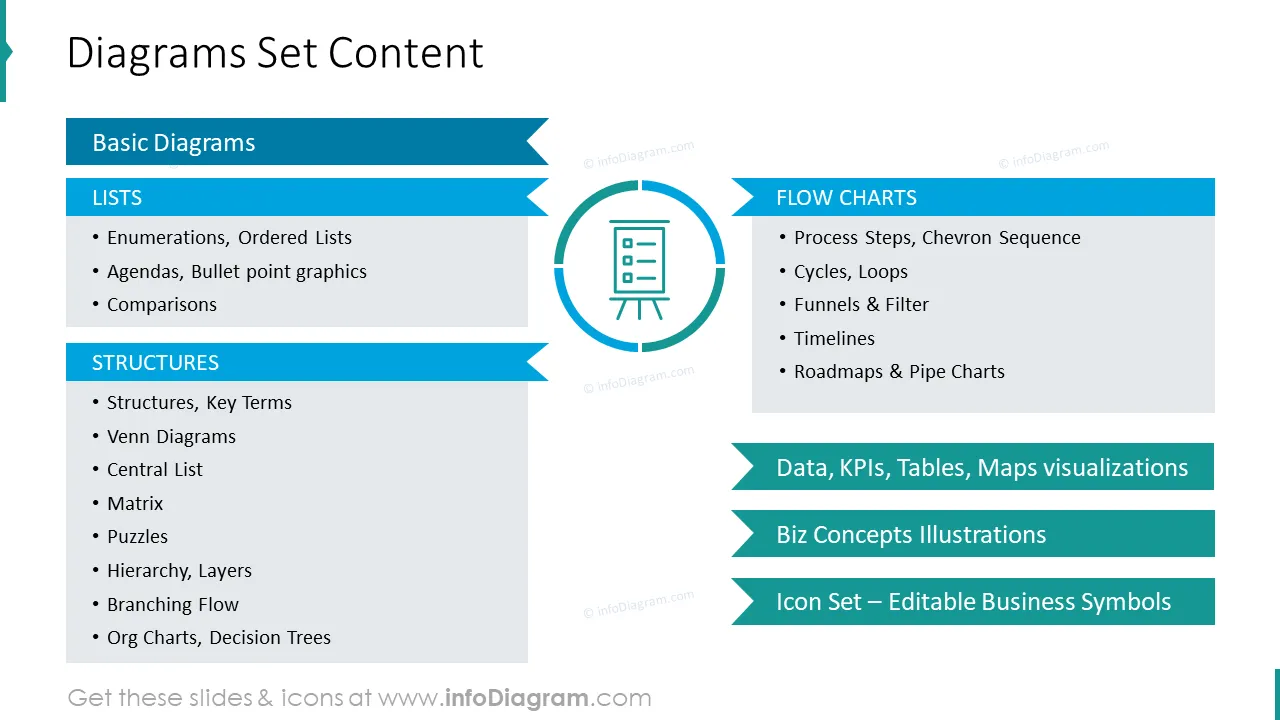
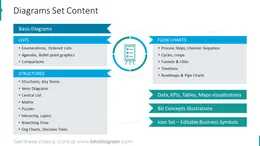
This Premium slide deck contains hundreds of PowerPoint layouts including:
Diagrams are a form of visualizing qualitative information by simple shapes (arrows, rectangles, circles). Diagram expresses relations such as dependency, inclusion, hierarchy, and symbolic location of concepts. Examples are Venn diagrams - overlapping circles that show common parts on various concepts; flow charts representing stages, or abstract maps expressing organization hierarchy.
You can find more about the concept here: Wikipedia Diagram Article
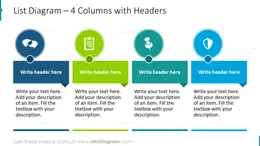
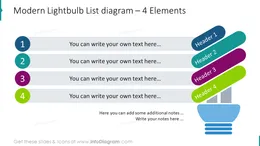
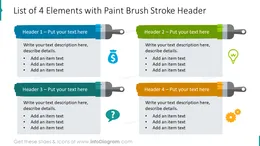
You can use diagram shapes for pretty much every type of content - listing, sequencing information, and showing relationships among objects. Besides the presentation graphics, the same diagrams can be used in text documents, reports, or as part of datasheet illustrations. InfoDiagram graphics can be imported to Word, Excel, Google Docs, or Keynote as well. Here are some examples of where you can apply those diagrams:
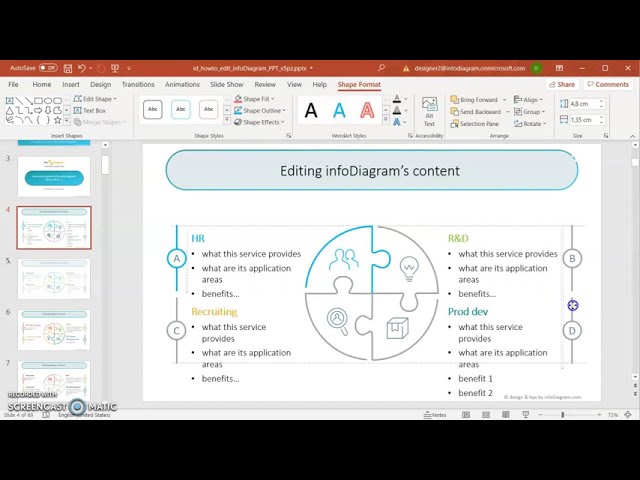
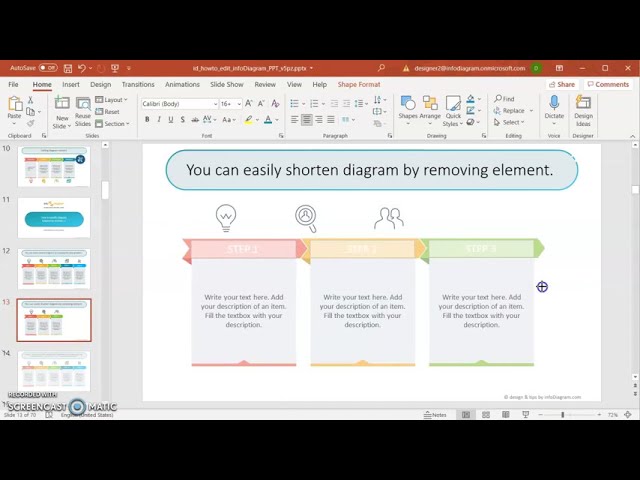
Fully editable in PowerPoint set of vector shapes fully editable by using built-in PowerPoint tools, including
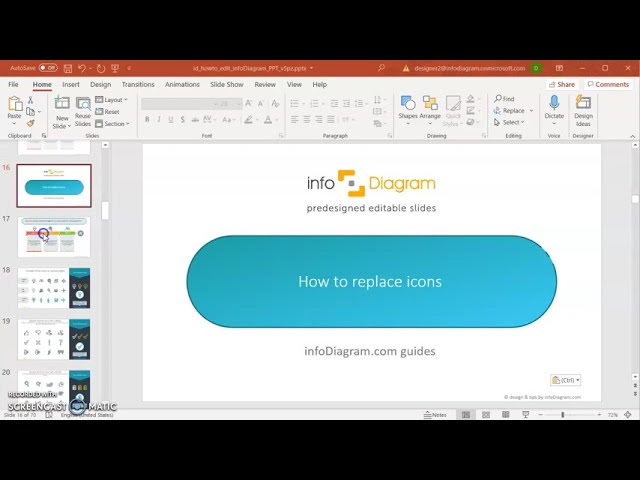
See the editing demonstration in our HowTo Videos.
Your graphics add a nice touch to my presentations and I recently used them for one of my all-hands meetings. Your toolbox adds professionalism to my slides. Instead of using standard clipart.
Claude Jones, Director of Engineer, @Walmartlabs, USA
I needed a fresh look at some of my slides. I've tried to find a way to create a paintbrush effect, to underline, accentuate, add some color and the handwritten markers were just the things. Very easy to use, easy to size, change the color. It was an affordable, perfect solution and I'm happy to recommend it.
Anonymous, US
The crisp, clean look of the graphics, and the fact that it allowed me to easily edit and change the colors to match the template was my main reason for purchasing them.
Brandie Jenkins, E-learning Developer, USA


You may also need