

Your graphics add a nice touch to my presentations and I recently used them for one of my all-hands meetings. Your toolbox adds professionalism to my slides. Instead of using standard clipart.
Claude Jones, Director of Engineer, @Walmartlabs, USA


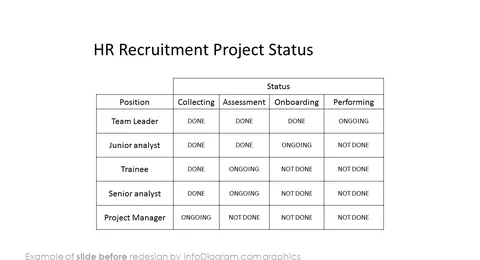
Before and after
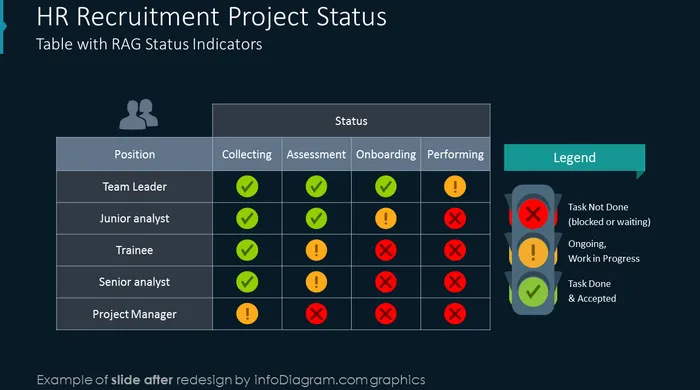
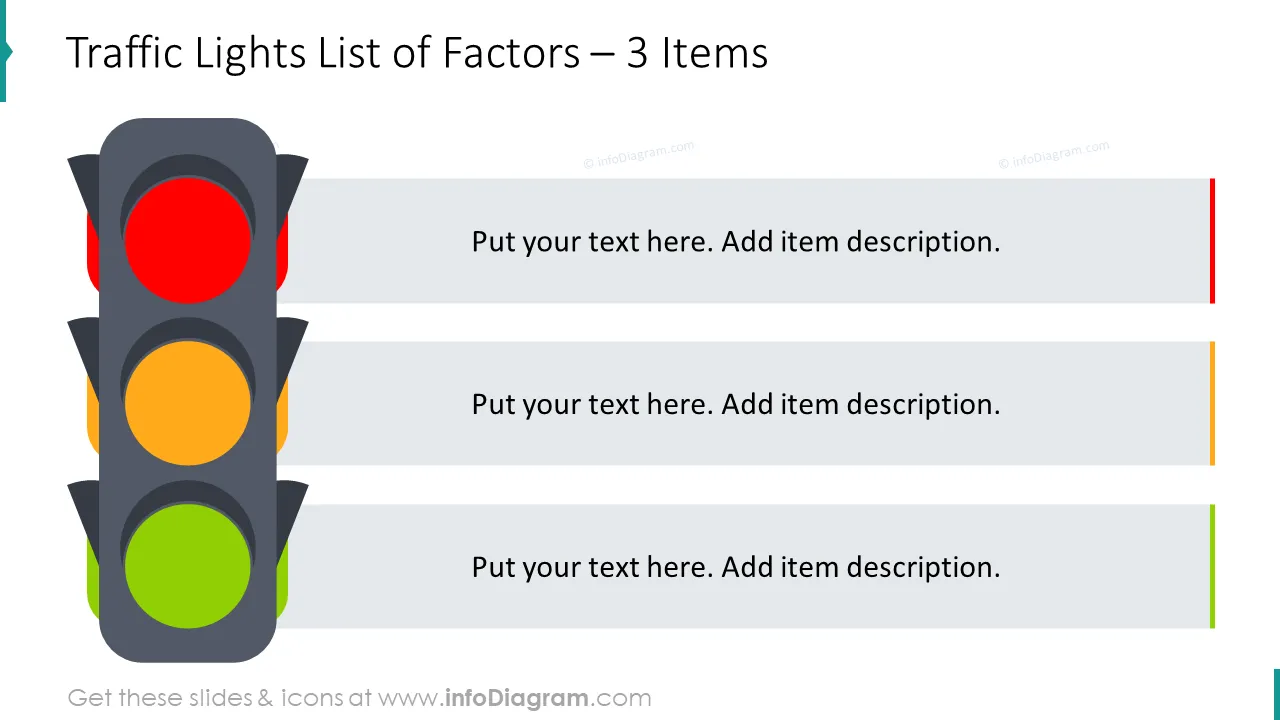
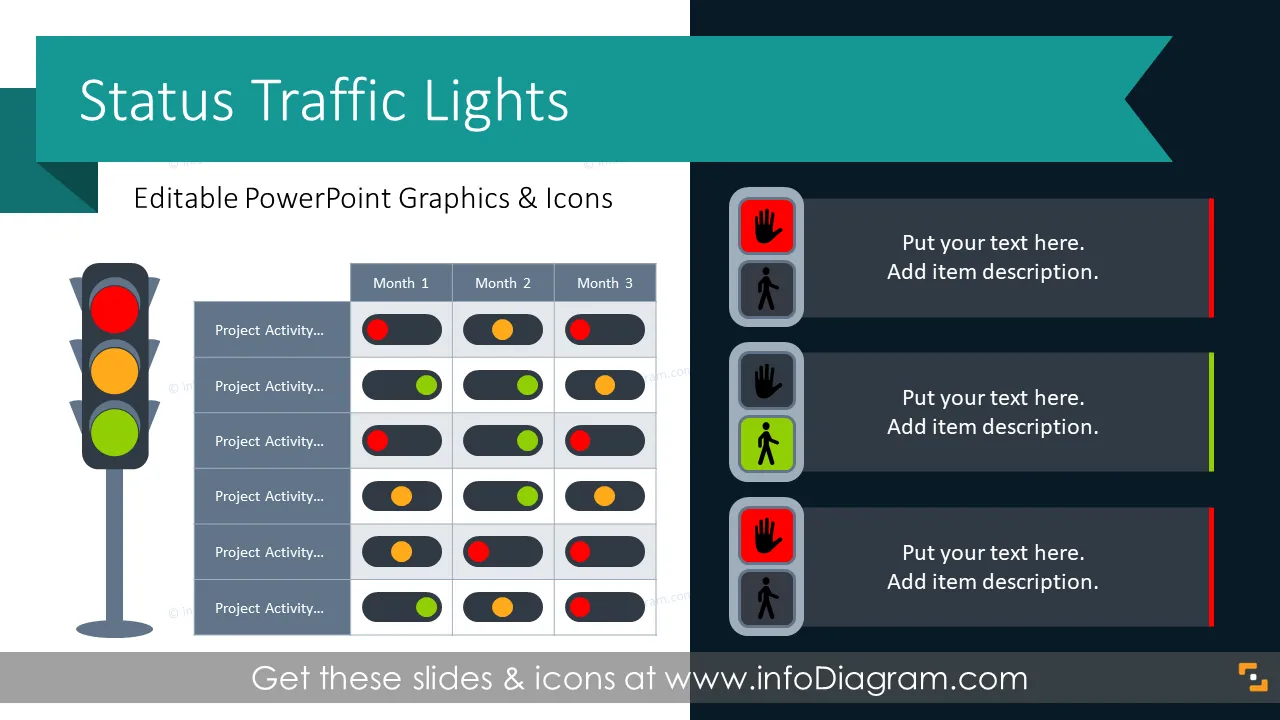
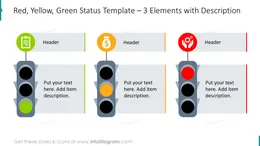
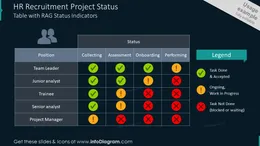
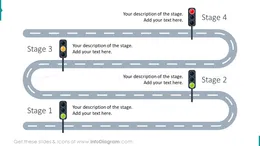
Are you presenting a project status update? Illustrate the activities' status by using the Traffic Lights PowerPoint Template. You can show what projects have to Go and what is a No-Go by colorful RAG table icons. Use red, amber, and green to show the development stages of the tasks. We have created modern and simple PowerPoint Presentation Templates that you can use to enrich your Gantt charts or project review presentations.
This PPT template includes editable charts covering:
RAG acronym stands for Red, Amber, and Green traffic lights. Those symbols are used in Project Management, to indicate the progress of project activity, or Go / No-Go decisions. These symbols can be placed inside the Gantt chart to visually show the task status.
You can create simple traffic signals from basic PPT designs or get one from this PPT template. Such signs can be placed next to the project name or inside status timetables. You can edit vector icons to change the color of light by simple color fill updates.
Those are simple recognizable signs that can be placed next to any content. Benefits of using them include:
These PowerPoint templates are used in plenty of situations, not only strictly in a project management context:
Status traffic lights icons are great when talking about project management and illustrating the state of activities. The PPT slides are ideal for illustrating GO/NOT GO concepts or displaying analyses and comparisons in your presentations. Besides this, with these designs, you can present annual or quarter project plans, activity timesheets, and IT project steps reviews. Change the text in boxes as per your own needs.
In the last part of this deck, we added a set of icons you can use too, to illustrate the type of project activity or company department handling the task. You can extend this set by getting more business symbols (see Related Diagrams section).
All symbols, charts, and text colors are easy to modify (all graphics are in a vector format). So you can change them to the colors of your template or company brand.
See editing demonstration in our HowTo Videos.
To deepen your understanding and skills, we suggest exploring additional materials such as our blog and YouTube video, which are trusted sources dedicated to refining presentation decks:
Your graphics add a nice touch to my presentations and I recently used them for one of my all-hands meetings. Your toolbox adds professionalism to my slides. Instead of using standard clipart.
Claude Jones, Director of Engineer, @Walmartlabs, USA
I needed a fresh look at some of my slides. I've tried to find a way to create a paintbrush effect, to underline, accentuate, add some color and the handwritten markers were just the things. Very easy to use, easy to size, change the color. It was an affordable, perfect solution and I'm happy to recommend it.
Anonymous, US
The crisp, clean look of the graphics, and the fact that it allowed me to easily edit and change the colors to match the template was my main reason for purchasing them.
Brandie Jenkins, E-learning Developer, USA



You may also need