

Your graphics add a nice touch to my presentations and I recently used them for one of my all-hands meetings. Your toolbox adds professionalism to my slides. Instead of using standard clipart.
Claude Jones, Director of Engineer, @Walmartlabs, USA

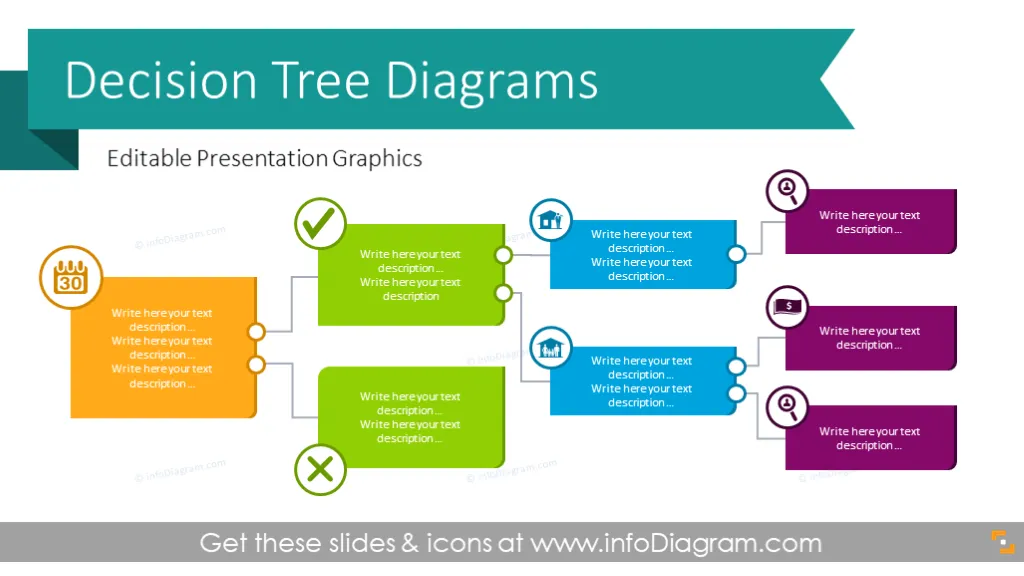
Before and after
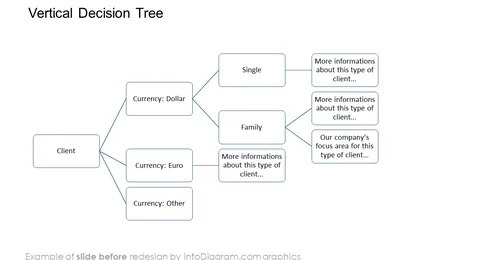
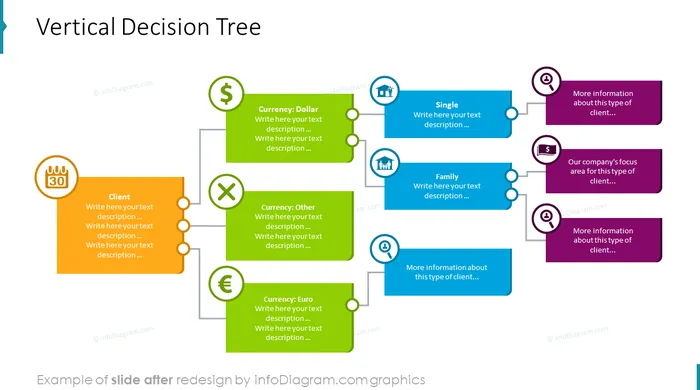
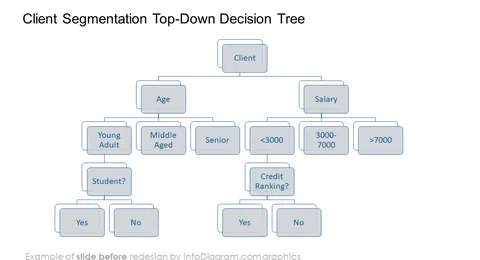
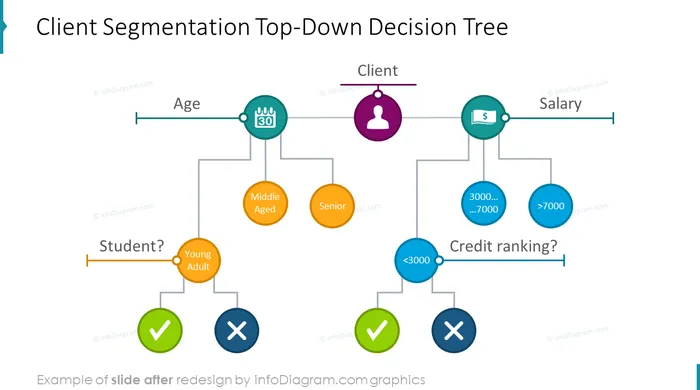
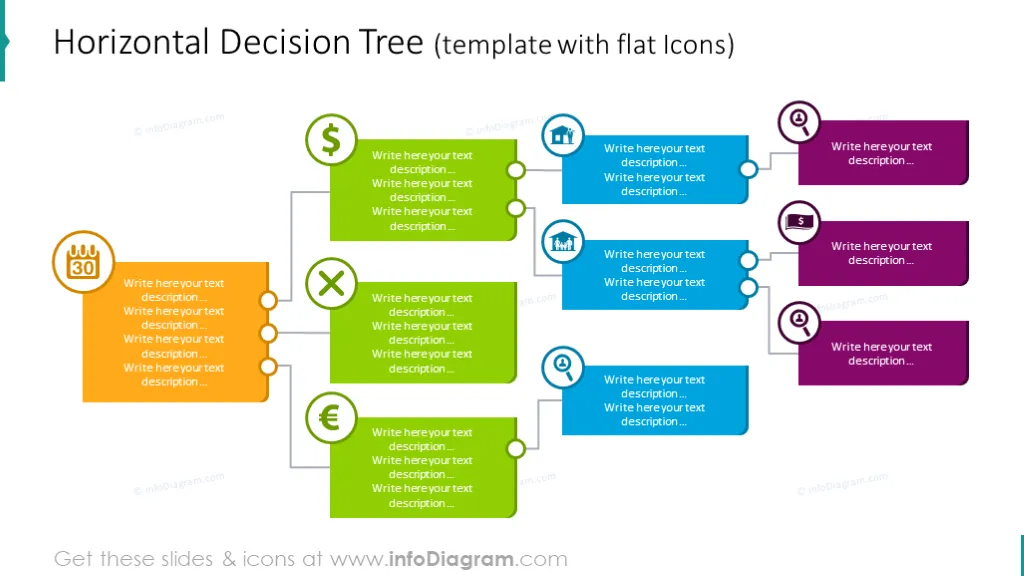
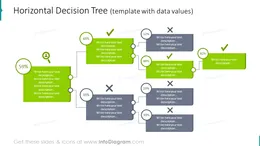
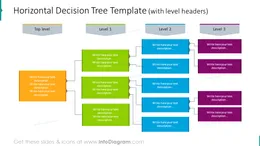
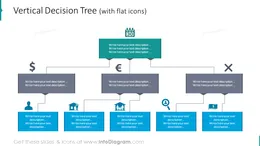
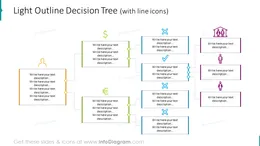
The Decision Tree PowerPoint Template allows you to illustrate decision-making with a clear visual tree flow chart. This decision PowerPoint Presentation template represents a decision, condition values, and their consequences.
The slide set with PowerPoint Decision Trees includes:
Format: fully customizable vector shapes (modify colors of diagrams and figures, resize without quality loss.
Visual representation of the decision-making process. It starts from the top root node and continues with tree arms, selected according to the branching attribute. These attributes can be nominal decisions such as Yes / No, Married / Single, or Occupation status (children, student, junior, senior, retired, etc.). Alternatively, decision criteria can be also a range of real values (age, scoring value, number of children). The final leaves of the decision tree represent an end-decision class. It can be for example an Approved / Rejected status in a credit scoring context.
Using this Decision Tree PPT Template helps to express your decision flow clearly.
Having tree charts in form of independent objects gives you the freedom to express your decision flow, add explanations or illustrate specific decision points. On the last slides, you have a set of several graphics you can reuse or you can extend the symbol collection by getting PPT figures set bundles (see Related Diagrams section).
The colors of these diagram designs are fully customizable (all graphics is a vector format). So you can edit them to the colors of your template or company brand. You can download the Decision Tree PowerPoint Slide on Google Slides .
The decision Tree Diagram contains ready-made slides:
Fully editable in PowerPoint set of vector shapes fully editable by using built-in PowerPoint tools, including
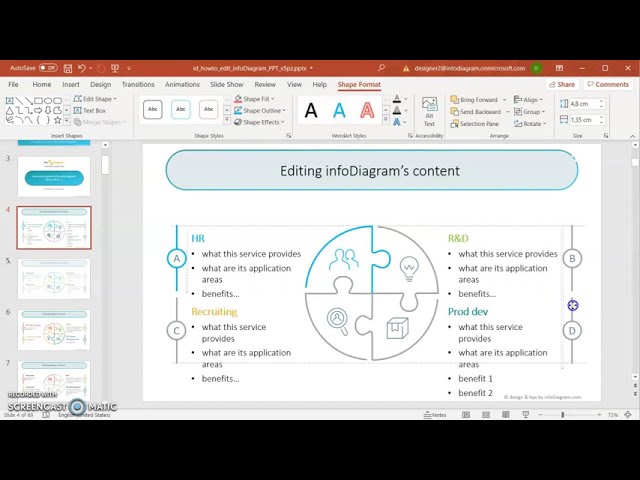
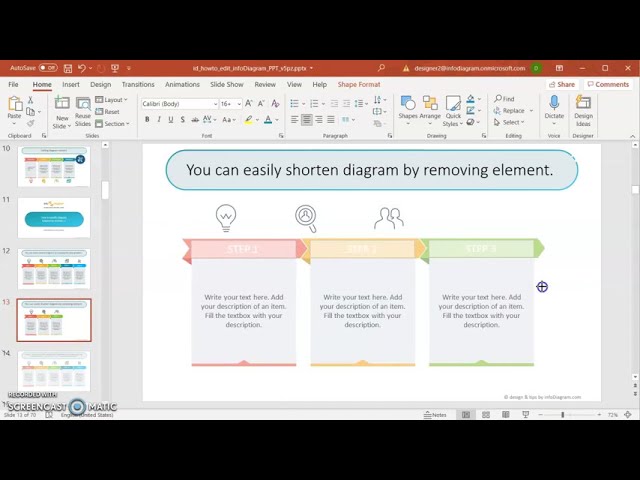
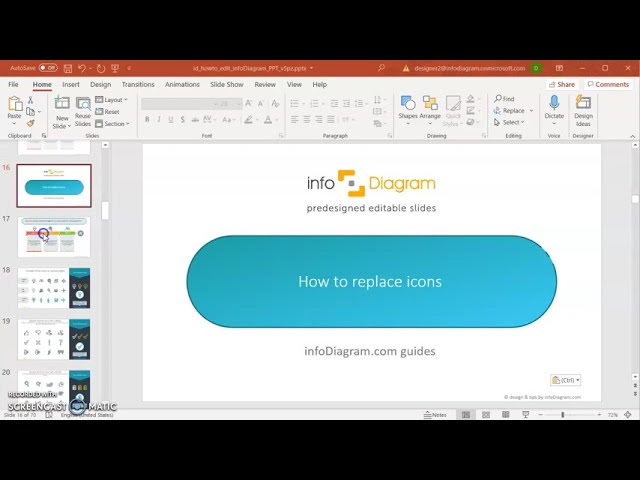
See editing demonstration in our HowTo Videos.
Your graphics add a nice touch to my presentations and I recently used them for one of my all-hands meetings. Your toolbox adds professionalism to my slides. Instead of using standard clipart.
Claude Jones, Director of Engineer, @Walmartlabs, USA
I needed a fresh look at some of my slides. I've tried to find a way to create a paintbrush effect, to underline, accentuate, add some color and the handwritten markers were just the things. Very easy to use, easy to size, change the color. It was an affordable, perfect solution and I'm happy to recommend it.
Anonymous, US
The crisp, clean look of the graphics, and the fact that it allowed me to easily edit and change the colors to match the template was my main reason for purchasing them.
Brandie Jenkins, E-learning Developer, USA
You may also need