

Your graphics add a nice touch to my presentations and I recently used them for one of my all-hands meetings. Your toolbox adds professionalism to my slides. Instead of using standard clipart.
Claude Jones, Director of Engineer, @Walmartlabs, USA

Your graphics add a nice touch to my presentations and I recently used them for one of my all-hands meetings. Your toolbox adds professionalism to my slides. Instead of using standard clipart.
Claude Jones, Director of Engineer, @Walmartlabs, USA
I needed a fresh look at some of my slides. I've tried to find a way to create a paintbrush effect, to underline, accentuate, add some color and the handwritten markers were just the things. Very easy to use, easy to size, change the color. It was an affordable, perfect solution and I'm happy to recommend it.
Anonymous, US
The crisp, clean look of the graphics, and the fact that it allowed me to easily edit and change the colors to match the template was my main reason for purchasing them.
Brandie Jenkins, E-learning Developer, USA
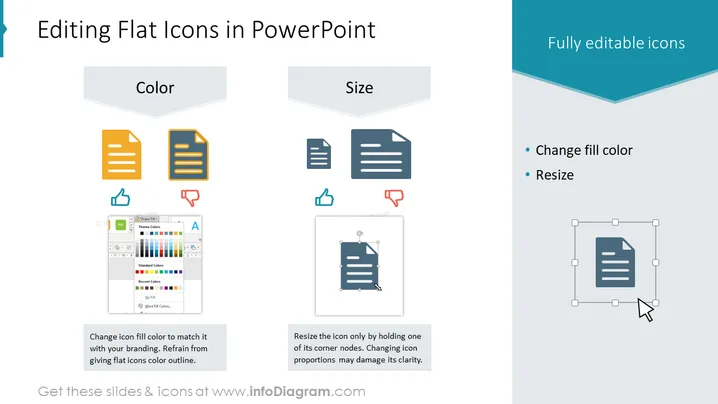
Die Folie erklärt, wie man Flachsymbole in PowerPoint mit zwei Hauptbearbeitungsoptionen bearbeitet: Farbe und Größe. "Farbe" zeigt, wie die Füllfarbe des Symbols geändert werden kann, um mit der Markenidentität übereinzustimmen, und rät davon ab, eine Farbkontur hinzuzufügen, um die Ästhetik eines Flachsymbols beizubehalten. "Größe" veranschaulicht die korrekte Methode zur Größenänderung eines Symbols durch Anpassung der Eckknoten und warnt davor, dass eine Änderung der Proportionen des Symbols dessen Klarheit verringern könnte. Dies bietet einen einfachen Leitfaden, um sicherzustellen, dass Symbole in Präsentationen professionell und konsistent aussehen.



