

Your graphics add a nice touch to my presentations and I recently used them for one of my all-hands meetings. Your toolbox adds professionalism to my slides. Instead of using standard clipart.
Claude Jones, Director of Engineer, @Walmartlabs, USA

Your graphics add a nice touch to my presentations and I recently used them for one of my all-hands meetings. Your toolbox adds professionalism to my slides. Instead of using standard clipart.
Claude Jones, Director of Engineer, @Walmartlabs, USA
I needed a fresh look at some of my slides. I've tried to find a way to create a paintbrush effect, to underline, accentuate, add some color and the handwritten markers were just the things. Very easy to use, easy to size, change the color. It was an affordable, perfect solution and I'm happy to recommend it.
Anonymous, US
The crisp, clean look of the graphics, and the fact that it allowed me to easily edit and change the colors to match the template was my main reason for purchasing them.
Brandie Jenkins, E-learning Developer, USA
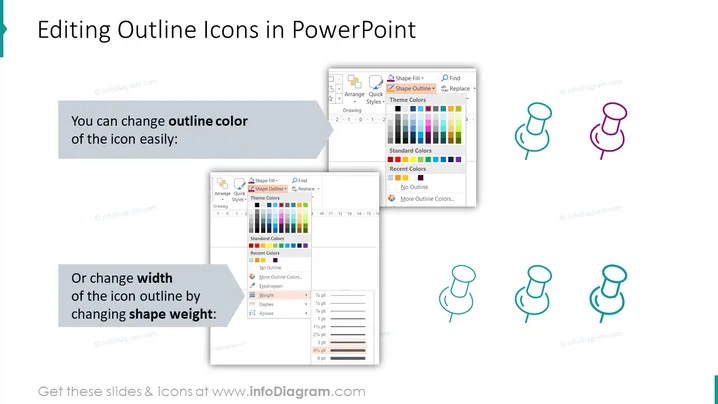
The PowerPoint slide is titled "Editing Outline Icons in PowerPoint" and details two primary ways to edit outline icons within the PowerPoint software. The first is changing the outline color, which can easily be adapted to the user's preference. This allows for customization and visual differentiation, making the icons fit with various design themes or branding colors. The second method is adjusting the width of the icon outline by changing the shape weight; this feature allows for a subtler or more pronounced presence of the icons depending on their line thickness, which can help in adjusting the icons' prominence on the slide or in accordance with the overall design style.
The slide utilizes a clean and organized layout, where visual aids clearly demonstrate the text's instructions. The use of contrasting colors and varying icon sizes helps to emphasize the effects of different editing techniques.



